
How to ACTUALLY Install Claude Code with VS Code: Step-By-Step Guide

I’m so tired of content that doesn’t give concrete steps on setting up Claude Code in a way that’s helpful, so here it is.
Step 1: Install VS Code
Why?: Is you use Claude Code on your desktop,
How: Go to https://code.visualstudio.com/download and download and install it.
Step 2: Install Claude Code
Make sure you’re in VS Code
Open the Terminal by clicking on symbol in the top right.

Once you click on it, the terminal will open in the bottom:
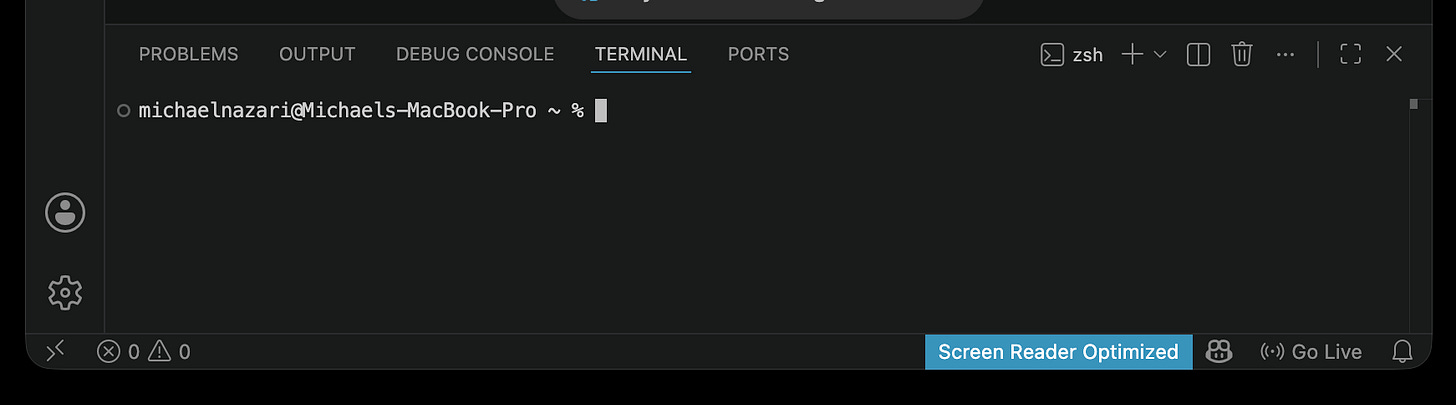
Paste this into the Terminal: curl -fsSL https://claude.ai/install.sh | bash

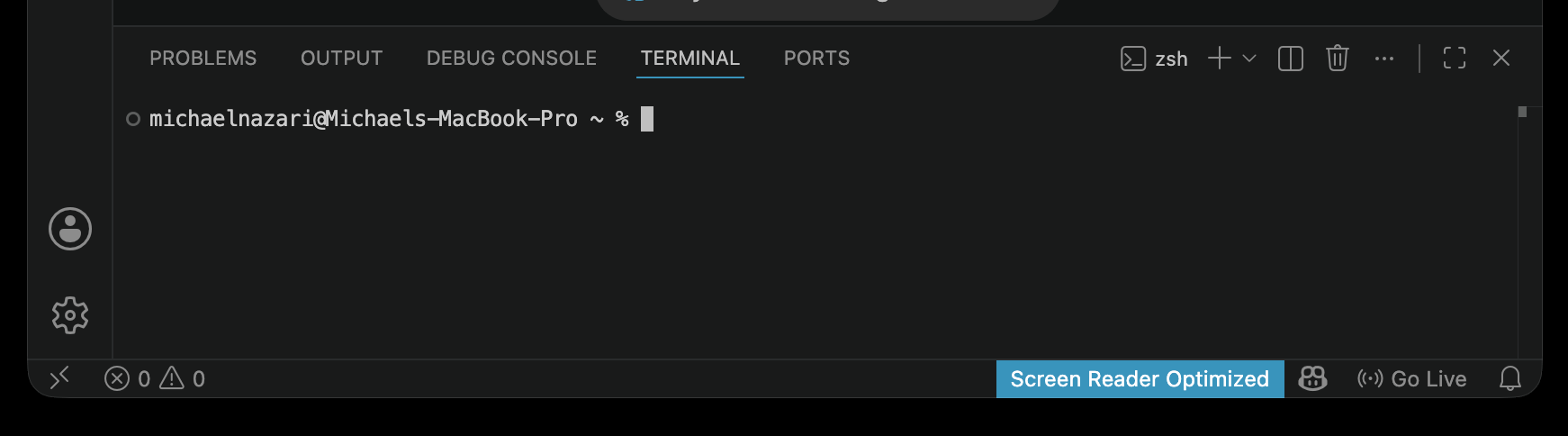
Step 3: Launch Claude
In the Terminal, type “claude” to start Claude
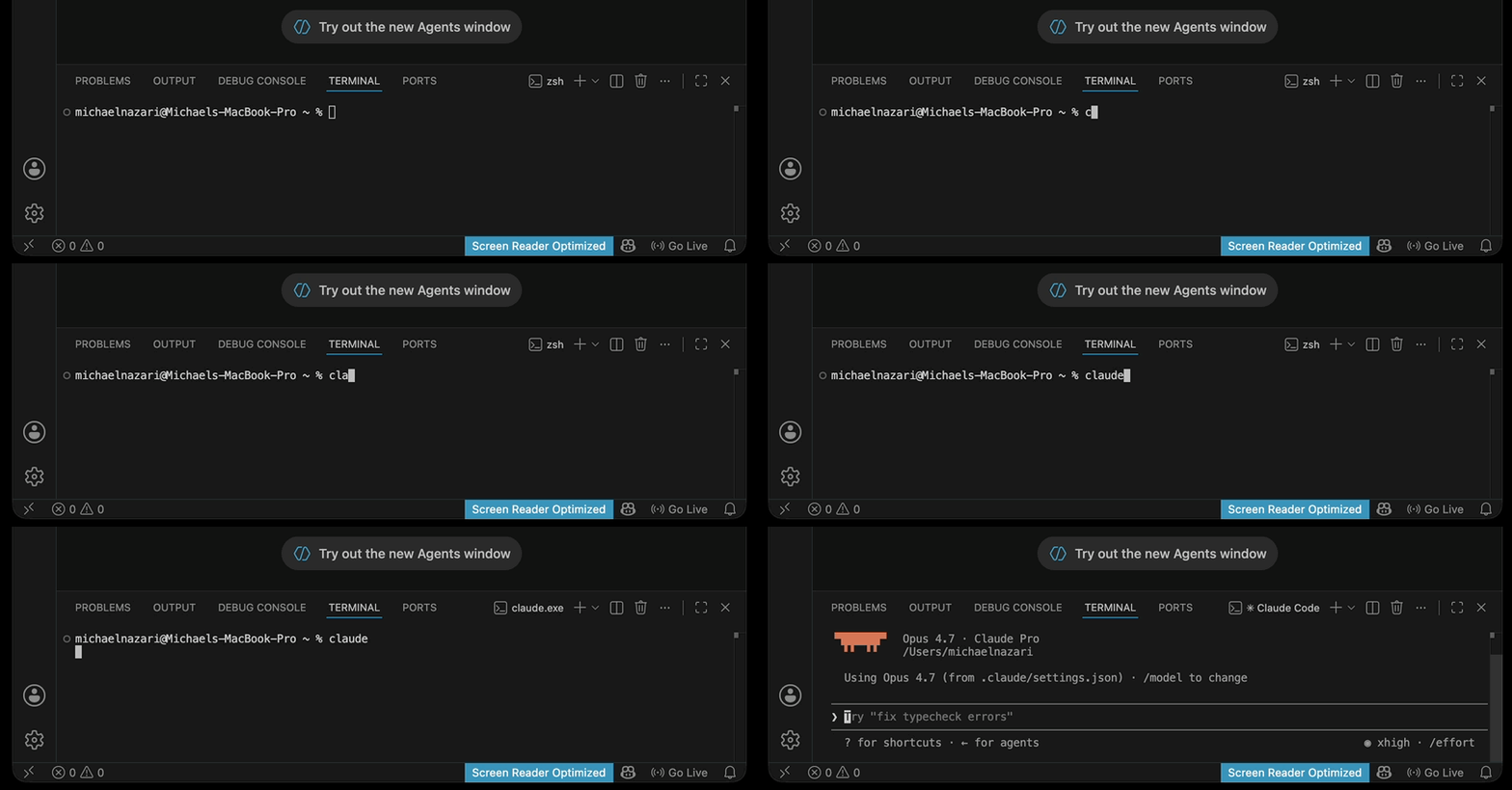
Step 4: Authenticate Claude
Your browser should open automatically so you can log into Claude/Anthropic. Go through the steps and once you finish, go back to VS Code. You’ll be good to go.
Step 5: Install the VS Code extension
Why? This allows you to use Claude within VS Code
In VS Code, on the left-hand side, click the image that looks like 4 squares (see image below)

The plug-in menu will open, search “Claude code” and hit enter. It should be the first plug in that shows in the list.

Once you click on it, you’ll see the option to install the plugin.
Now you’ll see the Claude logo in the top left. Click it and you’ll open the Claude sidebar. Now you’re ready to use Claude.

Step 6 (the last step): Create a Folder to have Claude wo
rk within
Create a folder either on your Desktop or Documents. I call mine simply “Michaels Main Folder

Now open that folder within VS Code
Go to File > Open Folder
Find the folder you just created

And that’s technically it. You’ll need to do more to really get set up, but I want you to start playing around with it right away. Think of a project you have going on And ask Claude to create a folder for it.
For example:
“I have a newsletter I’m working on. Can you create a folder for it so we can work on it together?
“I’m planning on moving state. Can you create a folder for this? The project includes finding an apartment and selling all my stuff.”